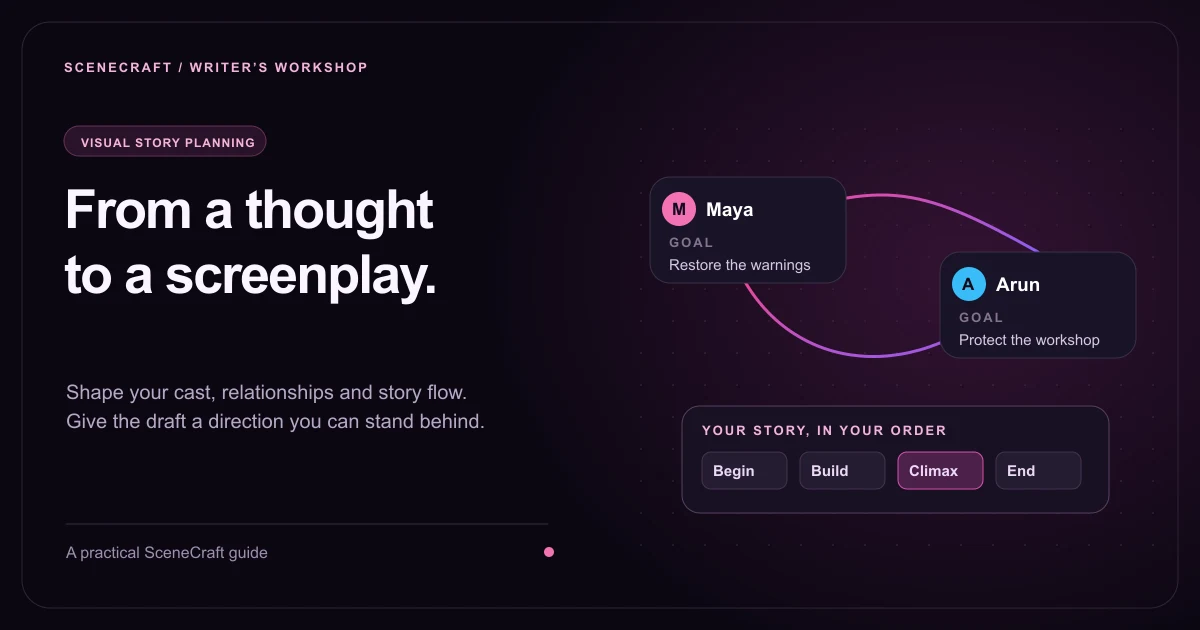
Visual Story Planning: Turn a Story Idea into a Screenplay
Turn scattered story thoughts into a structured screenplay with a visual character map, evolving relationships, ordered beats, and writing direction you control.
AD
Ankitraj Dwivedi
Co-founder and screenwriter
Visual story planning turns a rough idea into an editable plan before screenplay pages are written. In SceneCraft, you describe the premise, build a character relationship map, arrange story beats, and give writing direction. AI then drafts one scene per beat, guided by that plan. You review the action, dialogue, and dramatic choices before treating the draft as finished.
A raw thought can be difficult to write: “A mechanic and her estranged brother have one night to save an evacuation train.” You can imagine the rain and the final signal. What connects those images? Who makes the decisive choice? Those decisions are the useful work of planning.
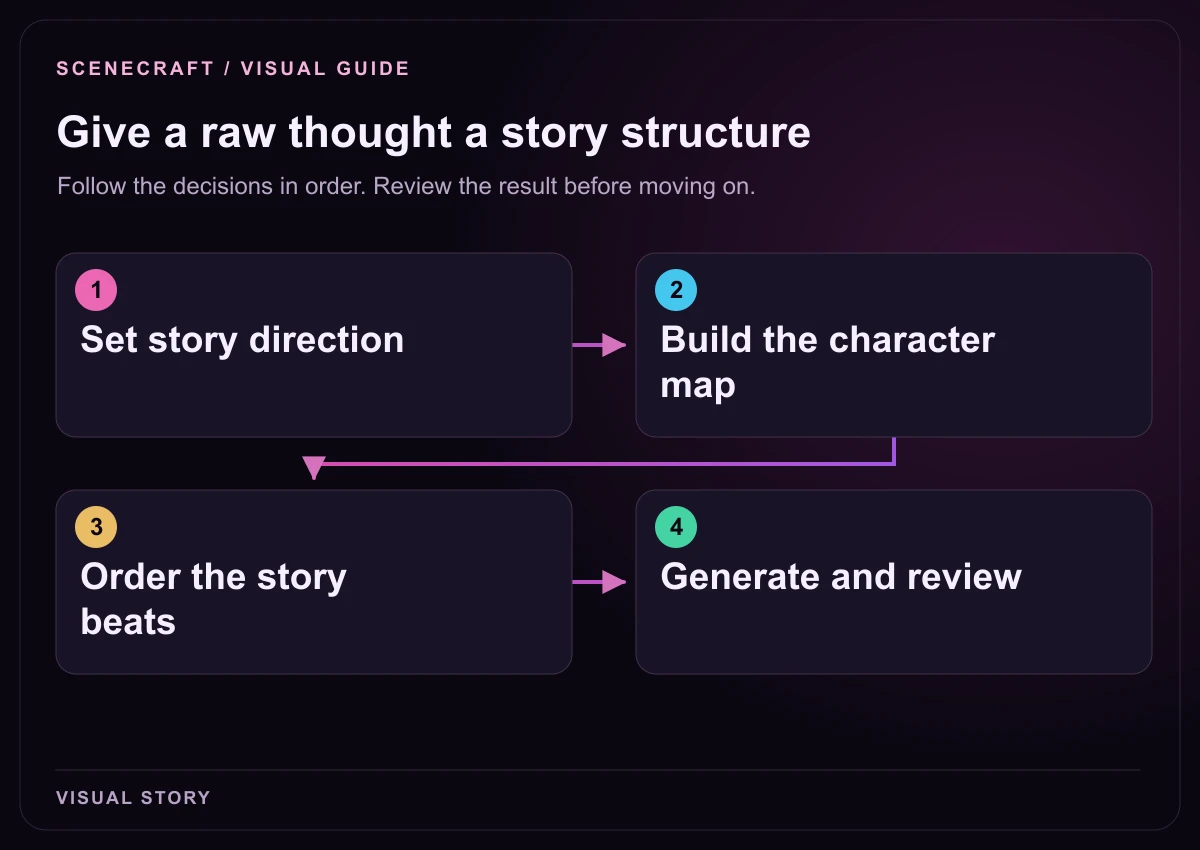
1. Set story direction: State premise, world rules and voice. 2. Build the character map: Define goals and evolving relationships. 3. Order the story beats: Arrange actions and their consequences. 4. Generate and review: Refine the scenes against your plan.
Give the idea a dramatic problem
Start with the person, the objective, the obstacle, and the consequence of failure. You do not need polished prose. A few plain sentences are enough to make the story’s direction visible.
This premise gives an urgent problem and a relationship that complicates solving it. “A dramatic story about family and trains” gives less direction. Write the facts that would make you reject a draft if it changed them.
For a broader adaptation workflow, see how to turn a story into a screenplay. Visual Story is useful when you want to decide the cast, connections, and scene progression yourself before drafting.
Open Visual Story and set the boundaries
Open Dashboard, choose Projects, open your project, and select Visual Story. Its four sections are Story direction, Character map, Story flow, and Screenplay. Start in Story direction with the premise and screenplay language. Add a working title, genre, theme, world rules, and tone where they help.
World rules prevent contradictions. In Last Train Home, flooding isolates the line, the warning system cannot be repaired in time, and the solution must come from the established cast. Those rules shape a believable ending.
Use Must include for essential events or images and Must never happen for unwanted developments. For this story: include an improvised warning at the trackside; avoid a helicopter rescue, a new villain, or a last-minute invention. Boundaries are especially valuable when an ending already matters to you.
Build characters who want different things
In Character map, choose Add character for each person in your cast. Give each a distinct name and role. The most useful next field is the goal: the specific result they are trying to achieve. Motivation explains why that result matters. A flaw or inner conflict explains why they cannot simply take the sensible option.
Character
Immediate goal
Pressure on the story
Maya
Stop the train before it reaches the damaged track.
She wants Arun’s help without admitting how badly she hurt him.
Arun
Protect their workshop and keep his community safe.
He believes Maya will leave once the crisis is over.
Leela
Complete a safe evacuation.
Disclosing the neglected repairs risks her authority when people need clear instructions.
Add appearance, personality, backstory, arc, voice, and non-negotiable character facts as needed. Reference images make the map easier to recognize, but write the physical details that the screenplay must preserve. You can leave optional fields blank and develop them later; a missing biography should not prevent an otherwise usable story plan.
Connect Maya to Arun with a relationship label, a description of their shared history, and an evolution note. “Estranged siblings” identifies the bond. “They begin by bargaining, break apart when Maya hides evidence, and reconcile through a shared practical risk” tells the draft how that bond changes. The character relationship map guide develops this distinction in detail.
Turn the map into events, then put them in order
A character map shows who affects whom. Story flow determines what happens next. In Story flow, add beat cards to Beginning, Middle, Climax, and Ending. One beat becomes one generated screenplay scene, so divide long sequences into the actual scene-sized moments you want to read.
Choose the characters involved in each beat. Add the action, location, time of day, emotional purpose, and outcome when you know them. Timeline and subplot notes help track flashbacks or parallel threads. Earlier-beat dependencies record information or events a later moment needs.
Stage
Beat direction
What changes
Beginning
Maya tests the warning system with Leela and discovers it cannot signal the train.
The deadline becomes real; Maya must ask Arun for help.
Middle
Arun finds a maintenance record Maya kept from him while they attempt a repair.
A technical disagreement becomes a personal betrayal.
Middle
The repair fails, and Leela reveals why the damaged section stayed open.
They lose the easy solution and gain the information needed for a manual warning.
Climax
Maya admits what she concealed; Arun joins her at the trackside while Leela coordinates the station.
They stop protecting themselves and accept a shared risk.
Ending
The train stops safely. Maya and Arun return to the workshop after the evacuation.
A small shared task shows that their partnership can continue.
Drag cards between stages or use the reorder arrows to change the screenplay sequence. Check the cause behind every transition: because the repair fails, the characters need a different plan; because Maya admits the truth, Arun chooses to help. A sequence held together only by “and then” usually needs a stronger consequence.
The board supports your chosen structure. The three-act structure guide can help you test escalation, but you do not need to fill every stage with the same number of scenes.
Tell the draft how you write
Voice direction works best when it describes visible habits. “Concrete action, restrained emotion, interrupted dialogue, and humor through the siblings’ familiar routines” is easier to apply than “cinematic and powerful.” You can also paste a short writing sample. It guides style; it is not a request to add the sample’s plot to your story.
Separate the overall writing voice from each character’s speech. Maya can answer with practical details when uncomfortable; Arun can use dry jokes to avoid a direct accusation. More examples are in how to keep your writing voice in an AI screenplay.
Generate the screenplay and review the choices
Open Screenplay when your premise, named cast, and directed story flow are ready. Review the generation credit estimate before confirming. Additional voice notes, appearance descriptions, and individual beat outcomes can improve direction, but they are optional.
Each scene is saved as the draft progresses. Pause after the current scene and resume later. The finished draft syncs into Editor, Overview, Outline, Beats, and Characters. Refine dialogue and action in the Editor, then use Export to take the screenplay elsewhere.
Missing character details can also be developed from your supplied notes, references, and screenplay, with a credit estimate. Read the distinction between details supported by the story and inferred or proposed designs. Preserve the choices you recognize and revise anything that introduces an unwanted interpretation.
If the draft feels wrong, fix the nearest cause
The story drifts: tighten the premise and world rules, then add the unwanted development to Must never happen.
A scene feels aimless: specify what someone attempts and what changes because of it.
Everyone sounds alike: give the characters different ways to avoid, persuade, accuse, and reveal.
The map looks crowded: group related cards, collapse the group, and expand it when you need to edit members.
Project sections need linking: use Sync screenplay to review existing screenplay, cast, and Visual Story changes before applying them.
For a broader drafting workflow, read how to write a screenplay with AI. Keep plot decisions in your plan and sentence revisions in the Editor.
Visual story planning questions
Can I start with only a rough story idea?
Yes. Turn the idea into a premise, add at least one uniquely named character, and add a beat with some story direction. More detail gives the draft clearer guidance, but a complete character biography or polished outline is not required.
What is a node-based story editor?
It is a visual workspace where cards represent story elements and connections represent their relationships. SceneCraft uses character cards and relationship lines for the cast, alongside an ordered beat board for screenplay progression.
Does moving character cards change the plot?
No. Card positions and groups organize the canvas. Your beat order, written actions, outcomes, relationships, and story direction guide the screenplay.
Can AI follow my writing voice?
Voice notes and an optional writing sample guide the draft’s rhythm and style. Character voice notes can distinguish dialogue. Review and rewrite the result to make sure the emotional emphasis and language match your intention.
Where does the finished screenplay appear?
A completed Visual Story draft syncs to the project’s Editor, Overview, Outline, Beats, and Characters. If syncing needs another attempt, use Sync to project to finish linking saved scenes without generating them again.